Tech Tricks to Make Your Internet Connection Faster and More Stable
In the modern digital era, a fast and reliable internet connection has become as essential as electricity. Whether you are working from home, streaming videos, gaming online, or attending virtual meetings, slow internet can cause frustration and hamper productivity. Fortunately, there are several smart and practical tech tricks you can use to make your internet connection faster, more stable, and more efficient.
This detailed guide will explore the best methods to improve your Wi-Fi speed, reduce latency, and ensure a consistently strong connection.
1. Understanding What Affects Internet Speed
Before jumping into solutions, it’s essential to understand the main factors that affect your internet performance. Knowing these will help you identify where your connection is slowing down.
1.1 Bandwidth and Data Limitations
Bandwidth refers to the amount of data your internet connection can handle at once. If too many devices are connected and using the network simultaneously, your available bandwidth gets divided, resulting in slower speeds.
1.2 Signal Interference
Wireless signals can be disrupted by physical obstructions (like walls or furniture), electronic devices (like microwaves or cordless phones), and even neighboring Wi-Fi networks using the same channel.
1.3 Router Quality
Your router acts as the heart of your internet connection. Older or low-quality routers may not support high speeds or modern technologies like dual-band or Wi-Fi 6.
1.4 Internet Service Provider (ISP)
Your ISP’s infrastructure, plan limitations, and location-based congestion can all affect how fast and stable your internet feels.
2. Optimize Your Wi-Fi Router Placement
The position of your Wi-Fi router plays a huge role in determining signal strength and coverage.
2.1 Place the Router in a Central Location
For even coverage, position your router at a central point in your home, away from walls and obstacles. If your router is placed in a corner or behind furniture, signals will weaken before reaching distant rooms.
2.2 Keep It Elevated
Routers send signals in all directions, but placing them higher—on a shelf or mounted on a wall—can help signals travel farther and reduce interference.
2.3 Avoid Electronic Interference
Keep your router away from devices such as microwaves, Bluetooth speakers, and baby monitors that can disrupt Wi-Fi signals.
3. Update Your Router Firmware
Like smartphones and computers, routers need software updates to perform optimally.
3.1 Why Firmware Updates Matter
Firmware updates fix bugs, patch security holes, and improve connection performance. A router running outdated firmware may struggle to handle high-speed connections or modern devices efficiently.
3.2 How to Update Firmware
-
Log in to your router’s admin panel (usually via your browser using the router’s IP address).
-
Look for a “Firmware Update” or “Software Update” section.
-
Follow the on-screen instructions to install the latest version.
Doing this once every few months can significantly boost stability and security.
4. Switch to a Better Wi-Fi Channel
Wi-Fi signals operate on channels. When too many networks around you use the same channel, your connection can experience interference and slower speeds.
4.1 Check for Congested Channels
You can use apps or software like Wi-Fi Analyzer (Windows) or NetSpot (Mac) to identify which channels are overcrowded in your area.
4.2 Change the Channel
Access your router’s settings and manually switch to a less congested channel. This can drastically improve speed, especially in apartment buildings where many networks overlap.
5. Use the 5GHz Band Instead of 2.4GHz
Most modern routers offer dual-band functionality: 2.4GHz and 5GHz.
5.1 Difference Between the Two Bands
-
2.4GHz covers a wider area but offers slower speeds and more interference.
-
5GHz provides faster speeds with less interference but a shorter range.
5.2 When to Use 5GHz
If your device is close to the router (within one or two rooms), connect to the 5GHz network for faster performance. Use 2.4GHz for devices located farther away or on different floors.
6. Secure Your Wi-Fi Network
A weakly protected Wi-Fi network can be hijacked by neighbors or hackers, slowing your internet and compromising your data.
6.1 Use Strong Password Protection
Set a strong, unique password using WPA2 or WPA3 encryption. Avoid default passwords that come with your router.
6.2 Hide Your SSID
You can disable SSID broadcasting to hide your network name from casual users. This adds a layer of privacy and reduces the risk of unauthorized connections.
6.3 Monitor Connected Devices
Regularly check which devices are connected to your Wi-Fi. Most routers display this in the admin panel, allowing you to disconnect any unknown devices.
7. Use a Wired Connection for Important Tasks
While Wi-Fi is convenient, wired Ethernet connections are still the most stable and fastest way to access the internet.
7.1 Benefits of Ethernet
-
Zero signal interference
-
Lower latency (ideal for gaming or video calls)
-
Consistent high speeds
7.2 Hybrid Setup
You can keep key devices like your desktop PC, gaming console, or smart TV connected via Ethernet while using Wi-Fi for phones and tablets. This balances speed and convenience.
8. Upgrade Your Internet Plan or Router
Sometimes, no amount of tweaking will help if your connection is fundamentally limited by your hardware or plan.
8.1 Check Your Current Speed
Run a speed test using websites like Speedtest.net to compare your actual speed with what your ISP promises.
8.2 Upgrade Your Router
If you’re using a router older than three years, consider upgrading to a newer model with features like Wi-Fi 6 (802.11ax) or Mesh Networking. These technologies provide better coverage and faster speeds.
8.3 Choose a Better Internet Plan
If you regularly stream 4K videos, play online games, or have multiple connected devices, upgrading your plan may be necessary to handle your bandwidth needs.
9. Use a Mesh Wi-Fi System for Larger Homes
If you have a large home or multiple floors, a single router might not be enough to cover the entire area.
9.1 What Is a Mesh Wi-Fi System?
Mesh Wi-Fi uses multiple interconnected nodes placed throughout your home to create a single, seamless network. This eliminates “dead zones” and maintains strong signals everywhere.
9.2 Benefits of Mesh Systems
-
Automatic device handoff between nodes
-
Easy setup and control via mobile apps
-
Consistent performance in large or multi-story homes
Popular options include Google Nest Wi-Fi, TP-Link Deco, and Netgear Orbi.
10. Limit Background Applications and Devices
Even if your Wi-Fi is strong, bandwidth can still be drained by background apps or idle devices.
10.1 Close Background Processes
Streaming apps, cloud backups, and automatic updates can slow your connection. Regularly check your task manager or settings to pause unnecessary bandwidth-heavy apps.
10.2 Disconnect Idle Devices
Smart home gadgets, unused tablets, or old smartphones might be consuming bandwidth. Disconnect them if they’re not in use.
11. Manage DNS Settings for Faster Browsing
The Domain Name System (DNS) acts like a phonebook for the internet, converting website names into IP addresses.
11.1 Use a Faster DNS Provider
Changing your DNS from your ISP’s default to a public one can improve loading times. Popular options include:
-
Google DNS (8.8.8.8, 8.8.4.4)
-
Cloudflare DNS (1.1.1.1)
-
OpenDNS (208.67.222.222, 208.67.220.220)
11.2 How to Change DNS
You can change DNS settings in your device’s network settings or directly on your router for all connected devices.
12. Reboot Your Router Regularly
Routers, like computers, can slow down over time due to memory leaks or overheating.
12.1 Why Rebooting Helps
Rebooting clears cache and temporary errors, helping the router operate more efficiently.
12.2 Automate Reboots
Some routers allow you to schedule automatic reboots. Doing this once a week can help maintain a stable connection.
13. Use Network Extenders or Powerline Adapters
If your Wi-Fi struggles to reach certain rooms, there are hardware solutions that can help.
13.1 Wi-Fi Extenders
Extenders boost your existing signal and are easy to set up. However, they may slightly reduce speed because they relay the signal.
13.2 Powerline Adapters
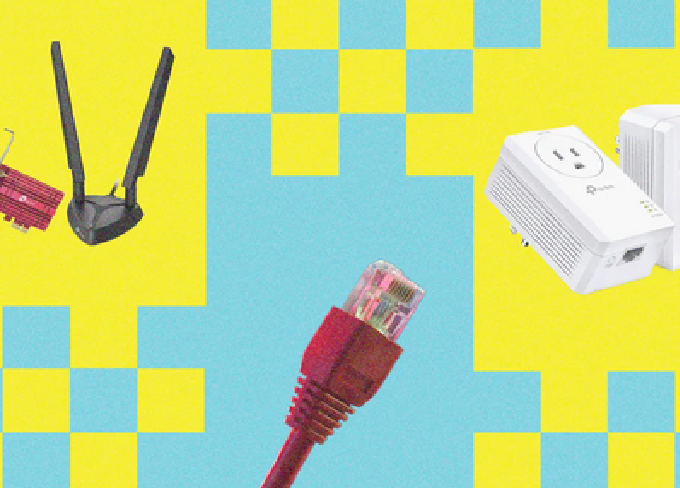
These devices use your home’s electrical wiring to transmit internet data. They’re a great option for connecting devices in rooms far from the router without running long cables.
14. Enable Quality of Service (QoS)
QoS is a router feature that prioritizes internet traffic for specific applications or devices.
14.1 How QoS Works
For example, you can prioritize video calls or gaming over background downloads, ensuring smoother performance for important tasks.
14.2 Setting Up QoS
-
Access your router’s admin panel.
-
Look for the QoS section.
-
Assign priority levels to certain devices or apps.
15. Avoid Overloading the Network
Every connected device takes up a portion of your bandwidth.
15.1 Manage Connections
If too many people are streaming, gaming, or downloading simultaneously, the connection will slow down. Encourage smart scheduling — for example, download large files at night when others aren’t using the network.
15.2 Monitor Data Usage
Many routers provide analytics to track data usage per device. This helps identify which devices are consuming the most bandwidth.
16. Update Your Devices and Apps
Outdated devices or apps may not be optimized for modern network speeds and protocols.
16.1 Keep Software Updated
Ensure your operating system, browsers, and applications are up to date. Updates often include performance improvements and better network handling.
16.2 Upgrade Old Hardware
Older devices with outdated Wi-Fi standards (like 802.11b/g) can slow down your network. If possible, replace them or connect them via Ethernet.
17. Optimize Browser and Cache Settings
If web pages are loading slowly, your browser settings might be the culprit.
17.1 Clear Cache and Cookies
Over time, your browser stores temporary files that can slow down performance. Clearing them regularly helps speed things up.
17.2 Limit Browser Extensions
Too many extensions can hog memory and delay page loading. Disable or uninstall those you don’t use.
18. Use a VPN Wisely
While VPNs provide privacy and security, they can also slow your connection if not configured correctly.
18.1 Choose a Fast VPN Provider
Opt for VPN services known for speed optimization and servers near your location.
18.2 Split Tunneling
Enable split tunneling (if supported) to send only sensitive data through the VPN while letting regular traffic go directly for faster speeds.
19. Contact Your ISP if Problems Persist
If you’ve tried all the tricks and still experience issues, it might be time to talk to your Internet Service Provider.
19.1 Request a Line Test
Your ISP can run diagnostics to check for faults in your connection or outdated equipment.
19.2 Ask About Upgrades
Sometimes, ISPs offer better modems or fiber-optic upgrades in your area that can dramatically improve performance.
20. Final Thoughts: Building a Reliable Internet Experience
Improving your internet speed and stability doesn’t always require expensive upgrades — often, it’s about smart setup, optimization, and maintenance.
By applying the above tech tricks — from updating firmware and optimizing router placement to managing bandwidth and upgrading your hardware — you can enjoy faster, more stable internet every day.
A well-optimized internet connection not only boosts productivity but also enhances your overall digital experience — whether you’re gaming, streaming, or simply browsing the web.





Post Comment