12 Hidden Android Features You Probably Didn’t Know About
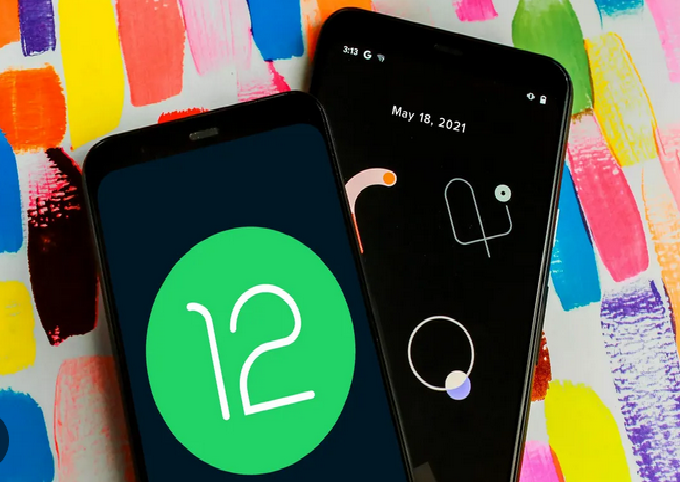
Android is one of the most versatile and customizable mobile operating systems in the world. Millions of people use it every day, but few truly know all the powerful features hidden beneath the surface. Google continuously adds new tools and settings with each Android update — yet most users never explore beyond the basics. From secret shortcuts to advanced privacy settings, your Android device can do far more than you think.
In this detailed guide, we’ll uncover 12 hidden Android features that can make your smartphone faster, safer, and more enjoyable to use. Whether you’re a beginner or a tech enthusiast, these tips will help you unlock the full potential of your Android phone.
1. Hidden Developer Options
Most Android users don’t realize their device has a secret “Developer Options” menu packed with advanced features.
To access it:
-
Open Settings > About Phone.
-
Tap Build Number seven times.
-
Enter your PIN or password if prompted.
Once activated, you’ll find Developer Options under Settings > System.
Here’s what you can do:
-
Speed up animations to make your phone feel faster.
-
Limit background processes to save battery life.
-
Enable USB debugging for advanced app or PC connections.
-
Force GPU rendering for smoother graphics.
Even if you’re not a developer, these tools allow for deeper control over your Android experience.
2. Split-Screen Multitasking
Do you often switch between apps while working or chatting? Android’s split-screen mode lets you run two apps simultaneously — ideal for multitasking.
How to enable it:
-
Open the first app.
-
Go to Recent Apps view.
-
Tap the app’s icon and select Split Screen.
-
Choose another app to open in the second half of the screen.
You can resize the window by dragging the divider. For example, you can watch a YouTube video on one side while replying to messages or checking emails on the other.
3. Smart Lock for Seamless Security
Android’s Smart Lock feature automatically unlocks your device in trusted situations, such as when you’re at home or connected to a known Bluetooth device.
Here’s how to set it up:
-
Go to Settings > Security > Smart Lock.
-
Choose from options like:
-
Trusted Places: Unlocks automatically at specific locations (e.g., home or office).
-
Trusted Devices: Unlocks when connected to your smartwatch or car Bluetooth.
-
On-body Detection: Stays unlocked while you’re carrying it.
-
This feature balances convenience and security, saving you from constantly entering your PIN or pattern in safe environments.
4. Digital Wellbeing Dashboard
In a world full of distractions, Android’s Digital Wellbeing feature helps you track and control your screen time.
You can find it under Settings > Digital Wellbeing & Parental Controls.
It shows detailed statistics such as:
-
How much time you spend on each app.
-
How many times you’ve unlocked your phone.
-
How many notifications you receive daily.
You can even set app timers or enable Focus Mode to block distractions. This is perfect for improving productivity and building healthier digital habits.
5. Screen Pinning for Focus and Security
If you ever lend your phone to someone — maybe to show a photo or make a call — Android has a hidden feature to lock them into one app so they can’t browse your personal data.
To enable screen pinning:
-
Go to Settings > Security > Screen Pinning (or Advanced > App Pinning on some devices).
-
Turn it on and enable Ask for PIN before unpinning.
When using an app, open the Recent Apps view and tap the app’s icon, then select Pin.
Now the user can only use that app until you unpin it (by holding the back and overview buttons).
It’s a simple yet powerful privacy feature.
6. Hidden File Manager
Android has a built-in file explorer that many users never discover.
To access it:
-
Open Settings > Storage.
-
Tap Files or Explore.
Alternatively, you can open Files by Google, which comes pre-installed on many phones.
This lets you:
-
Browse folders like Downloads, Documents, and Images.
-
Move, delete, or share files.
-
Free up space by deleting junk files or duplicates.
You don’t need third-party file managers — Android already has everything you need to manage your data efficiently.
7. Guest Mode for Privacy
If you often share your device with family or friends, Android’s Guest Mode is a lifesaver. It creates a temporary user profile where personal apps, messages, and data remain hidden.
To use it:
-
Swipe down from the top and tap your User Profile icon.
-
Select Add Guest.
The guest will have a clean, limited version of your phone. Once done, you can delete the guest session, instantly removing their data.
This feature is perfect for maintaining privacy and protecting sensitive information.
8. Quick App Switching Gesture
Android has a lesser-known multitasking gesture that lets you quickly switch between recent apps.
If your phone uses gesture navigation:
-
Swipe left or right along the bottom edge of the screen to move between apps.
If you’re using button navigation:
-
Double-tap the Recent Apps button to switch to your previous app.
This simple shortcut saves time and makes multitasking smoother, especially when you’re switching between a chat app and a browser.
9. Notification History
Ever swiped away a notification too quickly and couldn’t find it again? Android’s Notification History feature can bring it back.
To enable it:
-
Go to Settings > Notifications > Notification History.
-
Turn on Use Notification History.
Now, if you accidentally dismiss something, you can revisit it anytime from this menu.
It’s a small but incredibly useful feature — especially if you rely on multiple apps for work or communication.
10. Hidden System UI Tuner
The System UI Tuner is a secret customization tool that allows you to tweak your status bar, notifications, and quick settings.
To enable it:
-
Swipe down to open the Quick Settings panel.
-
Press and hold the Settings gear icon for about 5 seconds.
Once activated, you’ll see System UI Tuner in your settings (on some devices, you may need a third-party app to unlock it).
With this, you can:
-
Rearrange or hide icons in the status bar.
-
Control which notifications appear.
-
Adjust the look of your Quick Settings tiles.
It’s a hidden gem for users who love customizing their Android layout.
11. Google Assistant Hidden Commands
Google Assistant is more than just a voice helper — it’s packed with hidden features.
Try saying:
-
“Send a WhatsApp message to [contact name]”
-
“Read my last text message”
-
“Take a selfie”
-
“Find my phone” (even if it’s on silent)
-
“Turn on the flashlight”
You can also create custom routines, like “Good Morning” to automatically read the weather, play news, and turn off silent mode.
These hidden commands save time and make your device feel more intelligent and responsive.
12. One-Handed Mode
Large screens are great for entertainment — but not always easy to use with one hand. Android’s One-Handed Mode solves this problem by shrinking the screen downward.
To enable it:
-
Go to Settings > System > Gestures > One-Handed Mode.
-
Turn it on.
Now you can swipe down on the bottom edge of the screen to bring the display within reach.
This is especially useful for larger phones where tapping the top corners is difficult.
Bonus Tip: Hidden Easter Eggs
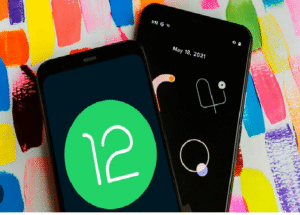
Every version of Android comes with a fun Easter egg — a secret mini-game or visual surprise hidden inside the system.
To find it:
-
Go to Settings > About Phone > Android Version.
-
Tap Android Version repeatedly.
You’ll uncover a surprise related to your Android version — from puzzles to floating objects or animations. It’s Google’s playful way of celebrating each Android update.
Why You Should Explore Hidden Features
Exploring hidden Android features can enhance your user experience in several ways:
-
Boost Performance: Features like Developer Options and animation controls make your device faster.
-
Improve Security: Smart Lock, Guest Mode, and Screen Pinning help protect your personal data.
-
Increase Productivity: Split-screen multitasking and Quick App Switching save valuable time.
-
Enhance Customization: System UI Tuner and One-Handed Mode let you tailor the interface to your needs.
-
Save Space: File Manager and Digital Wellbeing help organize and optimize storage usage.
By learning these hidden tricks, you can make your phone work smarter, not harder.
How to Keep Discovering More Android Tricks
Android’s open-source nature means new hidden tools and features appear regularly through system updates and manufacturer skins (like Samsung One UI, Xiaomi MIUI, or OnePlus OxygenOS).
To stay updated:
-
Regularly check Settings after every Android update.
-
Follow Android community forums and blogs.
-
Experiment safely — explore menus and features you’ve never tried before.
The more you explore, the more powerful your Android experience becomes.
Final Thoughts
Most Android users barely scratch the surface of what their phones can do. Beneath its simple interface lies a powerhouse of features designed for productivity, security, and fun.
From enabling Developer Options to mastering Split-Screen Mode, Smart Lock, and Notification History, these hidden tools can dramatically improve how you use your phone every day.
Android isn’t just an operating system — it’s a flexible, customizable ecosystem built for those who love to explore and personalize. So, take a few minutes today to dive into your settings, experiment with these features, and unlock the full potential of your device.



Post Comment