Essential Computer Maintenance Tips Every User Should Know
In today’s digital age, computers have become an essential part of our daily lives. Whether you use your computer for work, education, entertainment, or communication, maintaining it properly ensures smooth performance, security, and longevity. Many users ignore regular maintenance, which leads to slow performance, frequent crashes, overheating, and even data loss. Fortunately, maintaining your computer doesn’t require advanced technical skills—just a bit of awareness and consistent effort.
This comprehensive guide covers all the essential computer maintenance tips every user should know, helping you keep your device running like new for years.
1. Keep Your System Updated Regularly
One of the simplest yet most important maintenance tasks is to keep your operating system and software up to date. Updates often contain patches for security vulnerabilities, bug fixes, and performance improvements. Ignoring these updates can make your system more vulnerable to malware attacks or compatibility issues.
Why updates matter:
-
Fix bugs and errors in the software.
-
Patch security loopholes exploited by hackers.
-
Improve performance and stability.
-
Add new features for better functionality.
How to do it:
-
Windows users: Enable automatic updates through “Settings → Windows Update.”
-
Mac users: Go to “System Preferences → Software Update.”
-
Keep third-party applications (browsers, media players, etc.) updated as well.
2. Clean Out Unnecessary Files and Programs
Over time, your computer accumulates temporary files, caches, logs, and outdated applications that eat up disk space. This can lead to slower performance and reduced storage availability.
Steps to clean your computer:
-
Uninstall unused programs: Go to “Control Panel → Programs and Features” (Windows) or “Applications” (Mac) and remove what you no longer need.
-
Delete temporary files: Use built-in tools like “Disk Cleanup” in Windows or “Storage Management” in macOS.
-
Empty your recycle bin: Many users forget to clear deleted files from the recycle bin.
-
Use cleanup utilities: Tools like CCleaner or built-in storage optimizers help remove junk files safely.
A clean hard drive not only speeds up your system but also reduces wear and tear on your storage device.
3. Keep Your Computer Free from Malware
Malware—including viruses, spyware, ransomware, and trojans—can harm your system, steal your data, and slow down performance. Installing and maintaining reliable antivirus software is essential.
Tips to protect your system:
-
Install reputable antivirus software and keep it updated.
-
Run full system scans at least once a week.
-
Avoid downloading attachments or software from unknown sources.
-
Use browser extensions that block pop-ups and suspicious websites.
-
Enable real-time protection and automatic updates.
For added safety, consider using a firewall to monitor incoming and outgoing traffic, preventing unauthorized access to your system.
4. Defragment and Optimize Your Hard Drive
If you’re using a traditional hard drive (HDD), data fragmentation can slow down your computer. Files get scattered across the disk, making data retrieval slower.
Defragmentation helps by:
-
Reorganizing scattered data.
-
Improving file access speed.
-
Enhancing overall performance.
How to defragment your drive:
-
Windows: Use “Defragment and Optimize Drives” under “Administrative Tools.”
-
Mac: macOS automatically handles file optimization, so no manual defragmentation is needed.
-
SSD users: Avoid manual defragmentation, as it can reduce the lifespan of solid-state drives. Instead, run “Trim” optimization, which your system likely performs automatically.
5. Manage Startup Programs
Many applications automatically launch when your computer starts, consuming memory and slowing down the boot process. Reducing unnecessary startup programs can significantly improve startup speed and performance.
To manage startup apps:
-
Windows: Press
Ctrl + Shift + Esc→ “Task Manager” → “Startup” tab → Disable unwanted programs. -
Mac: Go to “System Preferences → Users & Groups → Login Items.”
Only keep essential startup programs such as antivirus or hardware drivers.
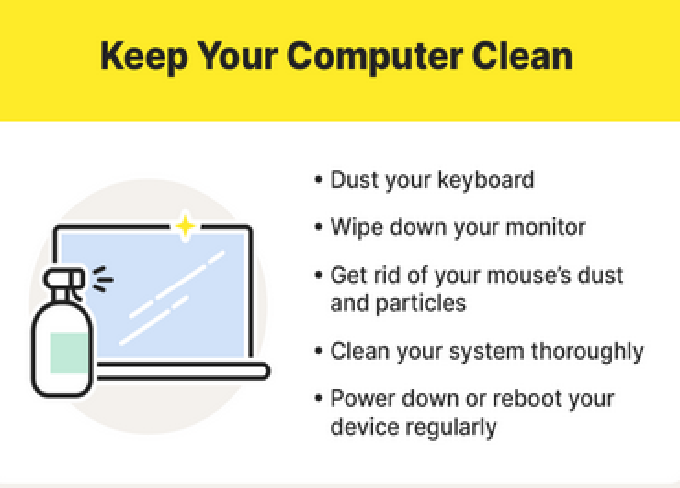
6. Keep Your Hardware Clean
Dust and dirt are major enemies of computer hardware. Over time, they clog cooling fans, vents, and ports, causing overheating and component damage.
How to clean your computer safely:
-
Turn off and unplug your device before cleaning.
-
Use compressed air to blow out dust from vents and keyboards.
-
Wipe the screen with a microfiber cloth and gentle screen cleaner.
-
Clean your mouse and keyboard regularly to prevent sticky keys or erratic pointer movement.
-
For desktops, open the CPU casing occasionally to remove internal dust (only if you’re comfortable doing so).
Proper cleaning ensures better airflow, lower temperatures, and longer hardware life.
7. Backup Your Data Regularly
One of the most crucial computer maintenance habits is backing up your important data. Hardware can fail, malware can encrypt your files, or accidental deletion can occur at any time.
Backup options:
-
Cloud storage: Google Drive, OneDrive, Dropbox, or iCloud.
-
External hard drives: Portable HDDs or SSDs for offline backup.
-
Network-attached storage (NAS): Ideal for professional or home-office environments.
Use automated backup tools that run periodically without manual intervention. It’s best to follow the 3-2-1 backup rule:
-
Keep 3 copies of your data.
-
Store them on 2 different media.
-
Keep 1 copy offsite (like in the cloud).
8. Keep Your System Cool
Overheating is one of the main causes of computer slowdowns and hardware damage. When a system overheats, it throttles performance to protect its components.
To prevent overheating:
-
Make sure your computer’s vents aren’t blocked.
-
Avoid using laptops on soft surfaces like beds or cushions.
-
Use a cooling pad for laptops.
-
Regularly clean dust from fans and vents.
-
Monitor system temperature using software like HWMonitor or CoreTemp.
If your computer frequently overheats, it may need a new thermal paste or fan replacement.
9. Organize Your Files and Folders
Disorganized files make it harder to find important documents and slow down file indexing. Maintaining a clean and logical file structure helps improve productivity and system efficiency.
Tips for better file management:
-
Create folders for different categories (e.g., Work, Photos, Projects).
-
Delete duplicates and old versions of files.
-
Name files meaningfully instead of random numbers or letters.
-
Use the search and tagging features of your OS to locate files quickly.
An organized file system not only saves time but also helps backup software run more efficiently.
10. Monitor Your Storage and RAM Usage
If your computer feels sluggish, you may be running out of storage or RAM. Monitoring resource usage helps you identify what’s slowing down your system.
Steps to check performance:
-
Windows: Use “Task Manager” (Ctrl + Shift + Esc) → “Performance” tab.
-
Mac: Use “Activity Monitor.”
If you find that your RAM is consistently maxed out, consider upgrading your memory. Similarly, if your hard drive is over 80% full, delete unnecessary files or upgrade to a larger or faster SSD.
11. Secure Your Internet Connection
A compromised internet connection can expose your system to hackers, malware, or data theft. Maintaining online safety is part of computer maintenance too.
How to protect your connection:
-
Use strong and unique passwords for Wi-Fi.
-
Keep your router firmware updated.
-
Avoid connecting to unsecured public Wi-Fi networks.
-
Use a VPN for secure browsing on shared networks.
-
Disable file sharing when connected to public Wi-Fi.
Securing your internet helps protect both your data and computer from remote threats.
12. Update Your Drivers
Drivers are essential pieces of software that allow your operating system to communicate with hardware components like printers, sound cards, and graphic cards. Outdated drivers can cause hardware malfunctions or performance issues.
How to update drivers:
-
Windows: Go to “Device Manager” → right-click on a device → “Update driver.”
-
Manufacturer’s websites: Visit the official website (e.g., NVIDIA, AMD, Intel) for the latest versions.
-
Avoid third-party driver updater tools, as they can sometimes install incorrect or malicious drivers.
13. Protect Your Computer Physically
Physical protection is as important as digital security. Mishandling or accidents can cause irreversible damage.
Precautions to take:
-
Use surge protectors to protect against power spikes.
-
Avoid eating or drinking near your computer.
-
Keep your system in a well-ventilated, stable environment.
-
For laptops, use protective sleeves or padded bags while traveling.
Simple care can extend your computer’s life significantly.
14. Regularly Restart Your Computer
Many users leave their computers on for days or weeks without restarting, especially laptops. Restarting helps clear temporary memory, stops background processes, and refreshes the system.
Benefits of restarting:
-
Clears RAM and temporary cache.
-
Helps apply system updates properly.
-
Fixes minor glitches and slowdowns.
A quick restart every few days can do wonders for performance and stability.
15. Use System Restore and Recovery Tools
Sometimes, even with careful maintenance, systems can encounter problems. System restore points allow you to roll back to a previous, stable state without losing your files.
To create or use restore points:
-
Windows: “Control Panel → System → System Protection → Create Restore Point.”
-
Mac: Time Machine automatically handles system recovery.
You can also use system repair tools built into your OS for troubleshooting startup or boot issues.
16. Optimize Browser Performance
Your web browser can become sluggish if overloaded with extensions, cached data, and browsing history.
Tips for maintaining browser speed:
-
Clear cache and cookies regularly.
-
Disable unnecessary extensions or add-ons.
-
Keep your browser updated.
-
Use a lightweight browser if your system has limited resources.
-
Avoid opening too many tabs simultaneously.
This not only speeds up browsing but also reduces overall system load.
17. Use a UPS for Power Backup
Sudden power outages or voltage fluctuations can cause data corruption or hardware damage. A Uninterruptible Power Supply (UPS) ensures your computer gets stable power and gives you enough time to save your work and shut down safely.
Benefits of a UPS:
-
Prevents data loss from sudden shutdowns.
-
Protects hardware from voltage spikes.
-
Provides time to back up ongoing work.
It’s a small investment that can save you from costly repairs.
18. Educate Yourself About Common Computer Problems
Understanding basic computer issues and their solutions helps you act quickly without always needing professional help.
Examples:
-
Recognize signs of overheating or malware infection.
-
Learn how to boot into safe mode.
-
Understand error messages and diagnostic tools.
-
Familiarize yourself with BIOS/UEFI settings if you’re comfortable exploring hardware-level controls.
Being proactive reduces downtime and dependency on repair technicians.
19. Schedule Regular Maintenance Checks
Just like cars need regular servicing, computers benefit from scheduled check-ups too. Make a habit of performing maintenance tasks at least once a month.
Monthly maintenance checklist:
-
Check for system updates.
-
Clean out temporary files.
-
Run antivirus scans.
-
Backup your data.
-
Review startup programs and running processes.
This consistent routine ensures your computer remains in peak condition all year long.
20. Know When to Seek Professional Help
If your system experiences repeated crashes, overheating, or strange noises, don’t ignore it. Continuing to use a malfunctioning computer can cause further damage.
When to consult a technician:
-
Blue screen errors (BSOD) persist.
-
Your computer fails to boot or frequently shuts down.
-
Strange clicking sounds from the hard drive.
-
Components like RAM or GPU need upgrading.
A professional can diagnose and repair issues more efficiently and prevent long-term damage.
Conclusion
Your computer is a vital part of your personal and professional life, and keeping it healthy should be a top priority. With regular maintenance—both hardware and software—you can ensure optimal performance, prevent costly repairs, and extend your system’s lifespan.
By following these essential computer maintenance tips, you’ll enjoy faster speed, smoother operation, and enhanced security. Think of it like caring for a valuable machine—because that’s exactly what your computer is. Regular care today saves you from headaches tomorrow, ensuring your digital life runs seamlessly.





Post Comment